

Manjaro(ArchLinux)では、JoplinのパッケージがAURにあるので、yay -S joplin-desktop でインストールすることができます。
しかし、JoplinのオフィシャルページにはAppImageのダウンロードリンクが最初にあり、「デスクトップアイコンも処理するため、インストールスクリプトを実行することをお勧めします。」と書いてあるので、インストールスクリプトを実行してAppImage形式のJoplinをインストールすることにしました。

Joplinとは?
Joplinとは、Markdown(CommonMark)形式をサポートしているテキストエディタです。
- Markdown形式なので、Wordpressにそのままコピペできる
- Nextcloud, Dropbox, OneDrive, WebDAVなどのクラウドサービスと同期することができる
- Windows, MacOS, Linux, Android, iOSのマルチプラットフォーム対応
- FirefoxとChromeからWebページとスクリーンショットを保存するためのプラグインがある
- CSSファイルでMarkdownの見た目をカスタマイズできる
JoplinはWordpressブログの下書きとして、最適だと思います!
AppImageとは?
AppImageとは、Linuxのディストリビューションに依存せず、ダウンロードして実行権限を与えるだけで実行することができるアプリケーションファイルです。
また、AppImageのアプリケーションにはアプリケーションを実行するために必要なファイル(ライブラリ等)がすべて含まれているため、USBドライブからでも実行することができ、root権限も必要ありません。
Windowsのexeファイルはライブラリ等必要な場合がありますが、AppImageはそれすら必要ありません。

環境
$ uname -r
5.10.89-1-MANJARO
$ lsb_release -a
LSB Version:    n/a
Distributor ID:    ManjaroLinux
Description:    Manjaro Linux
Release:    21.2.1
Codename:    Qonos
$
Joplinのインストール先
AppImage形式のアプリケーションはroot権限不要というのが一つの利点ですが、個人的にホームディレクトリにアプリケーションファイルを置くのが気持ち悪いので、以下のとおりインストール先を変更します。
| デフォルトのインストール先 | 変更後のインストール先 | |
|---|---|---|
| AppImageファイル | ~/.joplin/Joplin.AppImage | /opt/joplin/Joplin.AppImage |
| VERSIONファイル | ~/.joplin/VERSION | /opt/joplin/VERSION |
| Desktopファイル | ~/.local/share/applications/appimagekit-joplin.desktop | /usr/share/applications/appimagekit-joplin.desktop |
| Iconファイル | ~/.local/share/icons/hicolor/512x512/apps/joplin.png | /usr/share/icons/hicolor/512x512/apps/joplin.png |
デフォルトのインストール先で問題ないと思う場合は、ターミナルで以下のコマンドを実行するだけで、Joplinがインストールされます。
$ wget -O - https://raw.githubusercontent.com/laurent22/joplin/dev/Joplin_install_and_update.sh | bashインストールスクリプトのダウンロード
インストールスクリプトのダウンロード用ディレクトリを作成します。
$ mkdir ~/Downloads/Joplin
$
$ ls ~/Downloads
Joplin
$
インストールスクリプトのダウンロード用ディレクトリに移動して、インストールスクリプトをダウンロードします。
$ cd ~/Downloads/Joplin/
$
$ wget https://raw.githubusercontent.com/laurent22/joplin/dev/Joplin_install_and_update.sh
--2021-12-24 14:01:50--  https://raw.githubusercontent.com/laurent22/joplin/dev/Joplin_install_and_update.sh
SSL_INIT
CA証明書 '/etc/ssl/certs/ca-certificates.crt' をロードしました
raw.githubusercontent.com (raw.githubusercontent.com) をDNSに問いあわせています... 185.199.109.133, 185.199.108.133, 185.199.111.133, ...
raw.githubusercontent.com (raw.githubusercontent.com)|185.199.109.133|:443 に接続しています... 接続しました。
HTTP による接続要求を送信しました、応答を待っています... 200 OK
長さ: 9665 (9.4K) [text/plain]
`Joplin_install_and_update.sh' に保存中

Joplin_install_and_ 100%[===================>]   9.44K  --.-KB/s 時間 0s

2021-12-24 14:01:51 (34.0 MB/s) - `Joplin_install_and_update.sh' へ保存完了 [9665/9665]

$
インストールスクリプトの修正
インストール先を変更するため、インストールスクリプトを修正します。
$ vi ~/Downloads/Joplin/Joplin_install_and_update.sh
$
修正したインストールスクリプトは以下のとおりです。
修正した部分は黄色マーカー+赤字です。
#!/usr/bin/env bash

set -e

trap 'handleError' ERR

handleError() {
    echo ""
    echo "If you encountered an error, please consider fixing"
    echo "the script for your environment and creating a pull"
    echo "request instead of asking for support on GitHub or"
    echo "the forum. The error message above should tell you"
    echo "where and why the error happened."
}

#-----------------------------------------------------
# Variables
#-----------------------------------------------------
COLOR_RED=`tput setaf 1`
COLOR_GREEN=`tput setaf 2`
COLOR_YELLOW=`tput setaf 3`
COLOR_BLUE=`tput setaf 4`
COLOR_RESET=`tput sgr0`
SILENT=false
ALLOW_ROOT=false
SHOW_CHANGELOG=false
INCLUDE_PRE_RELEASE=false

print() {
    if [[ "${SILENT}" == false ]] ; then
        echo -e "$@"
    fi
}

showLogo() {
    print "${COLOR_BLUE}"
    print "     _             _ _       "
    print "    | | ___  _ __ | (_)_ __  "
    print " _  | |/ _ \| '_ \| | | '_ \ "
    print "| |_| | (_) | |_) | | | | | |"
    print " \___/ \___/| .__/|_|_|_| |_|"
    print "            |_|"
    print ""
    print "Linux Installer and Updater"
    print "${COLOR_RESET}"
}

showHelp() {
    showLogo
    print "Available Arguments:"
    print "\t" "--help" "\t" "Show this help information" "\n"
    print "\t" "--allow-root" "\t" "Allow the install to be run as root"
    print "\t" "--changelog" "\t" "Show the changelog after installation"
    print "\t" "--force" "\t" "Always download the latest version"
    print "\t" "--silent" "\t" "Don't print any output"
    print "\t" "--prerelease" "\t" "Check for new Versions including Pre-Releases"

    if [[ ! -z $1 ]]; then
        print "\n" "${COLOR_RED}ERROR: " "$*" "${COLOR_RESET}" "\n"
    else
        exit 0
    fi

}

#-----------------------------------------------------
# PARSE ARGUMENTS
#-----------------------------------------------------

optspec=":h-:"
while getopts "${optspec}" OPT; do
  [ "${OPT}" = " " ] && continue
  if [ "${OPT}" = "-" ]; then   # long option: reformulate OPT and OPTARG
    OPT="${OPTARG%%=*}"       # extract long option name
    OPTARG="${OPTARG#$OPT}"   # extract long option argument (may be empty)
    OPTARG="${OPTARG#=}"      # if long option argument, remove assigning `=`
  fi
  case "${OPT}" in
    h | help )     showHelp ;;
    allow-root )   ALLOW_ROOT=true ;;
    silent )       SILENT=true ;;
    force )        FORCE=true ;;
    changelog )    SHOW_CHANGELOG=true ;;
    prerelease )   INCLUDE_PRE_RELEASE=true ;;
    [^\?]* )       showHelp "Illegal option --${OPT}"; exit 2 ;;
    \? )           showHelp "Illegal option -${OPTARG}"; exit 2 ;;
  esac
done
shift $((OPTIND-1)) # remove parsed options and args from $@ list

## Check and warn if running as root.
if [[ $EUID = 0 ]] && [[ "${ALLOW_ROOT}" != true ]]; then
    showHelp "It is not recommended (nor necessary) to run this script as root. To do so anyway, please use '--allow-root'"
    exit 1
fi

#-----------------------------------------------------
# START
#-----------------------------------------------------
showLogo

#-----------------------------------------------------
print "Checking architecture..."
## uname actually gives more information than needed, but it contains all architectures (hardware and software)
ARCHITECTURE=$(uname -m -p -i || echo "NO CHECK")

if [[ $ARCHITECTURE = "NO CHECK" ]] ; then
  print "${COLOR_YELLOW}WARNING: Can't get system architecture, skipping check${COLOR_RESET}"
elif [[ $ARCHITECTURE =~ .*aarch.*|.*arm.* ]] ; then
  showHelp "Arm systems are not officially supported by Joplin, please search the forum (https://discourse.joplinapp.org/) for more information"
  exit 1
elif [[ $ARCHITECTURE =~ .*i386.*|.*i686.* ]] ; then
  showHelp "32-bit systems are not supported by Joplin, please search the forum (https://discourse.joplinapp.org/) for more information"
  exit 1
fi

#-----------------------------------------------------
# Download Joplin
#-----------------------------------------------------

# Get the latest version to download
if [[ "$INCLUDE_PRE_RELEASE" == true ]]; then
  RELEASE_VERSION=$(wget -qO - "https://api.github.com/repos/laurent22/joplin/releases" | grep -Po '"tag_name": ?"v\K.*?(?=")' | sort -rV | head -1)
else
  RELEASE_VERSION=$(wget -qO - "https://api.github.com/repos/laurent22/joplin/releases/latest" | grep -Po '"tag_name": ?"v\K.*?(?=")')
fi

# Check if it's in the latest version
if [[ -e ~/.joplin/VERSION ]] && [[ $(< ~/.joplin/VERSION) == "${RELEASE_VERSION}" ]]; then
    print "${COLOR_GREEN}You already have the latest version${COLOR_RESET} ${RELEASE_VERSION} ${COLOR_GREEN}installed.${COLOR_RESET}"
    ([[ "$FORCE" == true ]] && print "Forcing installation...") || exit 0
else
    [[ -e ~/.joplin/VERSION ]] && CURRENT_VERSION=$(< ~/.joplin/VERSION)
    print "The latest version is ${RELEASE_VERSION}, but you have ${CURRENT_VERSION:-no version} installed."
fi

#-----------------------------------------------------
print 'Downloading Joplin...'
TEMP_DIR=$(mktemp -d)
wget -O "${TEMP_DIR}/Joplin.AppImage" "https://github.com/laurent22/joplin/releases/download/v${RELEASE_VERSION}/Joplin-${RELEASE_VERSION}.AppImage"
wget -O "${TEMP_DIR}/joplin.png" https://joplinapp.org/images/Icon512.png

#-----------------------------------------------------
print 'Installing Joplin...'
# Delete previous version (in future versions joplin.desktop shouldn't exist)
rm -f /opt/joplin/*.AppImage /usr/share/applications/joplin.desktop /opt/joplin/VERSION

# Creates the folder where the binary will be stored
mkdir -p /opt/joplin/

# Download the latest version
mv "${TEMP_DIR}/Joplin.AppImage" /opt/joplin/Joplin.AppImage

# Gives execution privileges
chmod +x /opt/joplin/Joplin.AppImage

print "${COLOR_GREEN}OK${COLOR_RESET}"

#-----------------------------------------------------
print 'Installing icon...'
mkdir -p /usr/share/icons/hicolor/512x512/apps
mv "${TEMP_DIR}/joplin.png" /usr/share/icons/hicolor/512x512/apps/joplin.png
print "${COLOR_GREEN}OK${COLOR_RESET}"

# Detect desktop environment
if [ "$XDG_CURRENT_DESKTOP" = "" ]
then
  DESKTOP=$(echo "${XDG_DATA_DIRS}" | sed 's/.*\(xfce\|kde\|gnome\).*/\1/')
else
  DESKTOP=$XDG_CURRENT_DESKTOP
fi
DESKTOP=${DESKTOP,,}  # convert to lower case

echo 'Create Desktop icon...'

# Detect distribution environment, and apply --no-sandbox fix
SANDBOXPARAM=""
# lsb_release isn't available on some platforms (e.g. opensuse)
# The equivalent of lsb_release in OpenSuse is the file /usr/lib/os-release
if command -v lsb_release &> /dev/null; then
  DISTVER=$(lsb_release -is) && DISTVER=$DISTVER$(lsb_release -rs)
  DISTCODENAME=$(lsb_release -cs)
  DISTMAJOR=$(lsb_release -rs|cut -d. -f1)
  #-----------------------------------------------------
  # Check for "The SUID sandbox helper binary was found, but is not configured correctly" problem.
  # It is present in Debian 1X. A (temporary) patch will be applied at .desktop file
  # Linux Mint 4 Debbie is based on Debian 10 and requires the same param handling.
  if [[ $DISTVER =~ Debian1. ]] || [ "$DISTVER" = "Linuxmint4" ] && [ "$DISTCODENAME" = "debbie" ] || [ "$DISTVER" = "CentOS" ] && [[ "$DISTMAJOR" =~ 6|7 ]]
  then
    SANDBOXPARAM="--no-sandbox"
  fi
fi

# Initially only desktop environments that were confirmed to use desktop files stored in
# `.local/share/desktop` had a desktop file created.
# However some environments don't return a desktop BUT still support these desktop files
# the command check was added to support all Desktops that have support for the
# freedesktop standard
# The old checks are left in place for historical reasons, but
# NO MORE DESKTOP ENVIRONMENTS SHOULD BE ADDED
# If a new environment needs to be supported, then the command check section should be re-thought
if [[ $DESKTOP =~ .*gnome.*|.*kde.*|.*xfce.*|.*mate.*|.*lxqt.*|.*unity.*|.*x-cinnamon.*|.*deepin.*|.*pantheon.*|.*lxde.*|.*i3.*|.*sway.* ]] || [[ `command -v update-desktop-database` ]]
then
    # Only delete the desktop file if it will be replaced
    rm -f /usr/share/applications/appimagekit-joplin.desktop

    # On some systems this directory doesn't exist by default
    mkdir -p /usr/share/applications

    # Tabs specifically, and not spaces, are needed for indentation with Bash heredocs
    cat >> /usr/share/applications/appimagekit-joplin.desktop <<-EOF
    [Desktop Entry]
    Encoding=UTF-8
    Name=Joplin
    Comment=Joplin for Desktop
    Exec=/opt/joplin/Joplin.AppImage ${SANDBOXPARAM} %u
    Icon=joplin
    StartupWMClass=Joplin
    Type=Application
    Categories=Office;
    MimeType=x-scheme-handler/joplin;
    EOF

    # Update application icons
    [[ `command -v update-desktop-database` ]] && update-desktop-database /usr/share/applications && update-desktop-database /usr/share/icons
    print "${COLOR_GREEN}OK${COLOR_RESET}"
else
    print "${COLOR_RED}NOT DONE, unknown desktop '${DESKTOP}'${COLOR_RESET}"
fi

#-----------------------------------------------------
# FINISH INSTALLATION
#-----------------------------------------------------

# Informs the user that it has been installed
print "${COLOR_GREEN}Joplin version${COLOR_RESET} ${RELEASE_VERSION} ${COLOR_GREEN}installed.${COLOR_RESET}"

# Record version
echo "$RELEASE_VERSION" > /opt/joplin/VERSION

#-----------------------------------------------------
if [[ "$SHOW_CHANGELOG" == true ]]; then
    NOTES=$(wget -qO - https://api.github.com/repos/laurent22/joplin/releases/latest | grep -Po '"body": "\K.*(?=")')
    print "${COLOR_BLUE}Changelog:${COLOR_RESET}\n${NOTES}"
fi

#-----------------------------------------------------
print "Cleaning up..."
rm -rf "$TEMP_DIR"
print "${COLOR_GREEN}OK${COLOR_RESET}"
インストール
ユーザーディレクトリではないところにファイルを置くので、sudoでインストールスクリプトを実行します。
root権限で実行する場合、--allow-rootオプションを付ける必要があります。
$ sudo bash ~/Downloads/Joplin/Joplin_install_and_update.sh --allow-root

     _             _ _
    | | ___  _ __ | (_)_ __
 _  | |/ _ \| '_ \| | | '_ \
| |_| | (_) | |_) | | | | | |
 \___/ \___/| .__/|_|_|_| |_|
            |_|

Linux Installer and Updater

Checking architecture...
SSL_INIT
The latest version is 2.6.10, but you have no version installed.
Downloading Joplin...
--2021-12-24 15:17:34--  https://github.com/laurent22/joplin/releases/download/v2.6.10/Joplin-2.6.10.AppImage
SSL_INIT
CA証明書 '/etc/ssl/certs/ca-certificates.crt' をロードしました
github.com (github.com) をDNSに問いあわせています... 52.69.186.44
github.com (github.com)|52.69.186.44|:443 に接続しています... 接続しました。
HTTP による接続要求を送信しました、応答を待っています... 302 Found
場所: https://objects.githubusercontent.com/github-production-release-asset-2e65be/79162682/f35c1675-fb07-4674-8eda-80bf9e14875d?X-Amz-Algorithm=AWS4-HMAC-SHA256&X-Amz-Credential=AKIAIWNJYAX4CSVEH53A%2F20211224%2Fus-east-1%2Fs3%2Faws4_request&X-Amz-Date=20211224T061737Z&X-Amz-Expires=300&X-Amz-Signature=cfb32e39f4f1fe756d43661dc44f27e71cf0a9b29605fe05e3962d5c42cff102&X-Amz-SignedHeaders=host&actor_id=0&key_id=0&repo_id=79162682&response-content-disposition=attachment%3B%20filename%3DJoplin-2.6.10.AppImage&response-content-type=application%2Foctet-stream [続く]
--2021-12-24 15:17:35--  https://objects.githubusercontent.com/github-production-release-asset-2e65be/79162682/f35c1675-fb07-4674-8eda-80bf9e14875d?X-Amz-Algorithm=AWS4-HMAC-SHA256&X-Amz-Credential=AKIAIWNJYAX4CSVEH53A%2F20211224%2Fus-east-1%2Fs3%2Faws4_request&X-Amz-Date=20211224T061737Z&X-Amz-Expires=300&X-Amz-Signature=cfb32e39f4f1fe756d43661dc44f27e71cf0a9b29605fe05e3962d5c42cff102&X-Amz-SignedHeaders=host&actor_id=0&key_id=0&repo_id=79162682&response-content-disposition=attachment%3B%20filename%3DJoplin-2.6.10.AppImage&response-content-type=application%2Foctet-stream
SSL_INIT
objects.githubusercontent.com (objects.githubusercontent.com) をDNSに問いあわせています... 185.199.110.133, 185.199.108.133, 185.199.109.133, ...
objects.githubusercontent.com (objects.githubusercontent.com)|185.199.110.133|:443 に接続しています... 接続しました。
HTTP による接続要求を送信しました、応答を待っています... 200 OK
長さ: 165052604 (157M) [application/octet-stream]
`/tmp/tmp.gTyt33dFrG/Joplin.AppImage' に保存中

/tmp/tmp.gTyt33dFrG/Joplin.AppImage 100%[=================================================================>] 157.41M  4.13MB/s 時間 36s

2021-12-24 15:18:12 (4.41 MB/s) - `/tmp/tmp.gTyt33dFrG/Joplin.AppImage' へ保存完了 [165052604/165052604]

--2021-12-24 15:18:12--  https://joplinapp.org/images/Icon512.png
SSL_INIT
CA証明書 '/etc/ssl/certs/ca-certificates.crt' をロードしました
joplinapp.org (joplinapp.org) をDNSに問いあわせています... 185.199.111.153, 185.199.108.153, 185.199.109.153, ...
joplinapp.org (joplinapp.org)|185.199.111.153|:443 に接続しています... 接続しました。
HTTP による接続要求を送信しました、応答を待っています... 200 OK
長さ: 22986 (22K) [image/png]
`/tmp/tmp.gTyt33dFrG/joplin.png' に保存中

/tmp/tmp.gTyt33dFrG/joplin.png      100%[=================================================================>]  22.45K  --.-KB/s 時間 0.009s

2021-12-24 15:18:13 (2.48 MB/s) - `/tmp/tmp.gTyt33dFrG/joplin.png' へ保存完了 [22986/22986]

Installing Joplin...
OK
Installing icon...
OK
Create Desktop icon...
OK
Joplin version 2.6.10 installed.
Cleaning up...
OK
$
確認
インストールが終わるとシステムメニューにJoplinが表示されます。
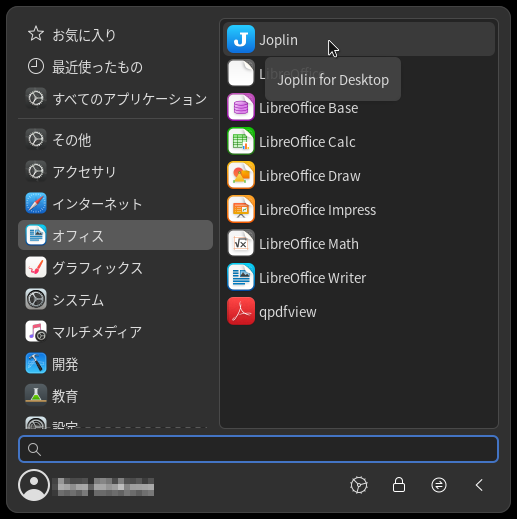
念のため、指定の場所にファイルがあるか確認します。
AppImageファイルとVERSIONファイル
$ ls -l /opt/joplin/
合計 161192
-rwxr-xr-x 1 root root 165052604 12月 19 20:12 Joplin.AppImage
-rw-r--r-- 1 root root         7 12月 24 15:18 VERSION
$ cat /opt/joplin/VERSION
2.6.10
$
Desktopファイル
$ ls -l /usr/share/applications/appimagekit-joplin.desktop
-rw-r--r-- 1 root root 211 12月 24 15:18 /usr/share/applications/appimagekit-joplin.desktop
$ cat /usr/share/applications/appimagekit-joplin.desktop
[Desktop Entry]
Encoding=UTF-8
Name=Joplin
Comment=Joplin for Desktop
Exec=/opt/joplin/Joplin.AppImage  %u
Icon=joplin
StartupWMClass=Joplin
Type=Application
Categories=Office;
MimeType=x-scheme-handler/joplin;
$
Iconファイル
$ ls -l /usr/share/icons/hicolor/512x512/apps/joplin.png
-rw-r--r-- 1 root root 22986 12月 24 03:18 /usr/share/icons/hicolor/512x512/apps/joplin.png
$
指定したディレクトリにすべてのファイルがあることを確認することができました。
バージョンアップ
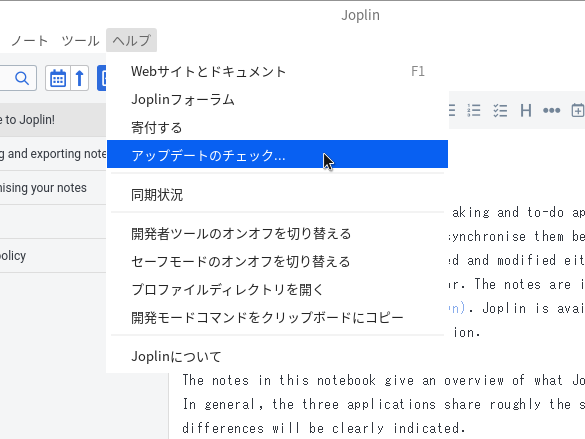
Joplinのバージョンアップが必要な場合は、インストールしたときと同様にインストールスクリプトを実行することで、古いJoplinが削除され、最新版のJoplinがインストールされます。
アップデートの有無は、Joplinのメニューから[ヘルプ]-[アップデートのチェック…]で確認することができます。

コメント